
 How to Hide Files on a USB Flash Drive
Many users asked us several questions related to data security on a USB flash drive. Such as: How to hide files on flash drive? Are you finding a method to hide your files and folders in your own Flash Drive? Can I hide files and folders on USB external drive? I need to hide some files in flash drive.
There are few methods to hide a file or folder in a flash drive. This article is providing you a simple way to hide files and folders on USB external drive with GiliSoft USB Encryption.
The following steps will tell us how to use Gilisoft USB Stick Encryption to hide files and folders on your USB flash drives.
Insert the USB flash drive that you want to password protect into the USB port of your computer.
Choose the drive and set the size of secure area will be created. You can refer to the picture below:

Click "Install" button to start creating secure area.

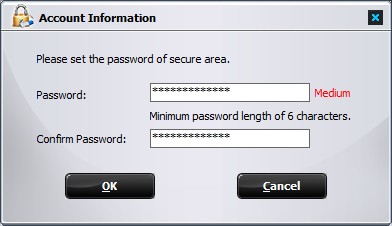
Set the user name and password of the secure area and click on the "OK" button to finish the operation.


Enter your email address to get our latest newsletter
 Password Protect data on USB flash drives.