

Free Screen Recorder for Windows: Choose the Right Capture Method
A free recorder may be enough for a short clip, but capture area, system audio, microphone, performance, scheduling, and output control determine whether it fits the real task.
Quick answer
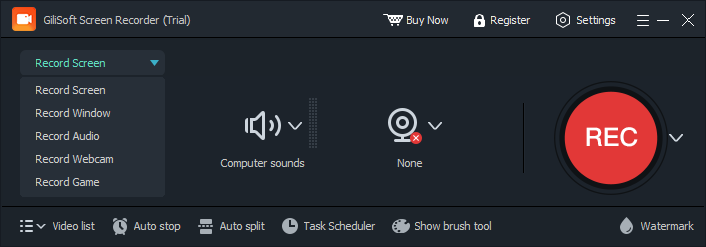
For a short recording, try Windows Snipping Tool or Xbox Game Bar when they support the required window and audio source. Choose GiliSoft Screen Recorder Pro when you need a selected region, system sound and microphone control, webcam, scheduled recording, cursor effects, or a repeatable desktop workflow. Its download is a trial.
Compare free screen recording options
| Option | Good for | Check first |
|---|---|---|
| Snipping Tool recording | Simple region recording on supported Windows versions | Audio and feature availability on the installed version |
| Xbox Game Bar | Recording a supported app or game | Desktop, File Explorer, and source limitations |
| Meeting app recorder | Meetings within that service | Host permission, participant notice, and cloud storage |
| Screen Recorder Pro trial | Desktop, region, audio, webcam, and scheduled workflows | Test the exact sources and output before purchase |
Define the recording before choosing software
- Choose full screen, one window, or a fixed region.
- Decide whether system sound, microphone, or both are required.
- Confirm webcam, cursor, keystroke, or annotation requirements.
- Estimate duration, resolution, frame rate, and available disk space.
- Respect participant consent, content rights, and organization policy.
Record a reliable test with Screen Recorder Pro
- Select the capture target.
Choose the display, window, or region and keep its dimensions stable.
- Enable only the required audio sources.
Select system sound, microphone, or both and watch the input meters.
- Choose a writable local output folder.
Confirm free space and avoid an unreliable network destination.
- Record the busiest ten seconds.
Include motion, speech, application audio, cursor actions, and any webcam source.
- Inspect the saved file.
Check picture, audio, sync, cursor, and playback before the real session.

Avoid common free recorder problems
Black video
Protected playback, graphics mode, or the wrong target may block capture.
Missing sound
Check the selected source, device activity, and Windows microphone permission.
Lag or dropped frames
Lower resolution or frame rate and close unnecessary applications.
Recording stops early
Check disk space, sleep settings, automatic stop rules, and output access.
Frequently asked questions
Can I record my screen for free?
Yes. Windows tools can handle basic supported scenarios. Confirm the required capture area, audio sources, duration, and output before relying on them.
Can Xbox Game Bar record the Windows desktop?
Its capture scope is designed around supported applications and games, so test the exact target instead of assuming it records every desktop surface.
Why does a free screen recording have no sound?
The wrong source may be selected, the device may be inactive, or Windows microphone permission may block input.
Why is screen recording laggy?
High resolution, frame rate, encoding load, other applications, slow storage, or graphics conflicts can reduce performance.
Is Screen Recorder Pro free?
The download is a trial. Use it to test the complete video, audio, webcam, and output workflow before purchasing.