
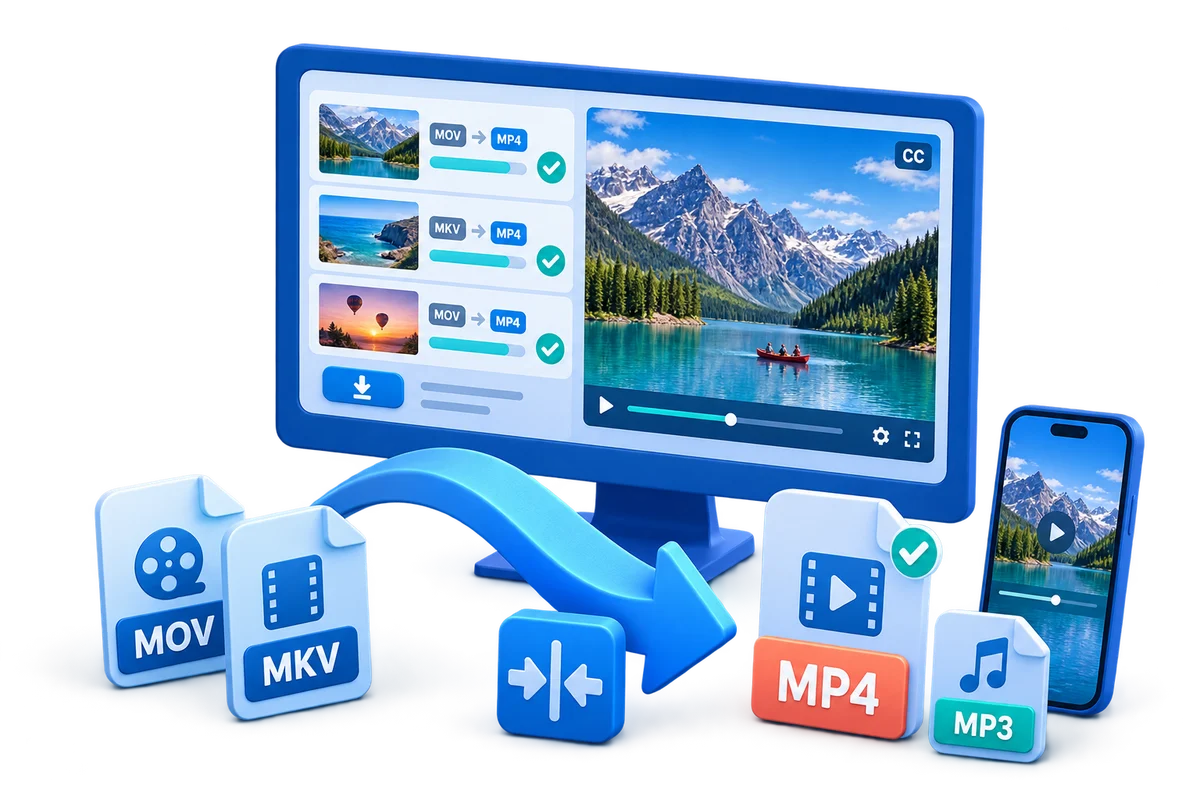
Free Video Converter for Windows: Compare Formats and Tools
A free video converter can help change a clip to MP4 or another format for a player, phone, editor, or sharing. Compare format support, output quality, batch limits, and privacy before choosing a desktop or online method.
Quick answer
For an occasional, non-sensitive clip, a free desktop converter or online service may be enough. Check the source codec and output settings first: changing a file container alone does not always make it playable or smaller. Online tools require uploading the video, so use an offline converter for private footage. If you need batch conversion, compression controls, audio extraction, subtitles, or device presets together, GiliSoft Video Converter is a Windows option to evaluate; its download is a trial.
Choose a video conversion method by task
| Task | Method to consider | Check before converting |
|---|---|---|
| Convert MOV or MKV to MP4 | Free desktop converter or online converter | Video and audio codec support, not only the filename extension |
| Make a clip play on a phone or TV | Device-ready output preset | Resolution, frame rate, codec, and device compatibility |
| Convert several files | Desktop tool with a batch queue | Per-file settings, destination, naming, and failed-item reporting |
| Reduce video file size | Video compression or re-encoding settings | Resolution, bitrate, codec, and acceptable quality loss |
| Save a soundtrack | Video-to-audio extraction tool | Output format, audio track selection, and rights to use the source |
| Convert private or large footage | Offline desktop converter | Local processing, disk space, and supported input formats |
Free video converter options and tradeoffs
Free desktop converter
Useful for recurring local jobs and larger files. Check installation terms, supported codecs, batch limits, watermarks, and whether advanced output settings are available.
Online converter
Convenient for a short, non-sensitive clip without installing software. Upload size, processing time, file retention, and output options vary by service.
Media-player or editor export
Can work when the source app already supports the required export format. Confirm that the output uses a codec supported by the target device.
Dedicated video converter
More suitable for repeated batches, format presets, compression settings, audio extraction, or subtitle handling in one desktop workflow.
Keep the original. Re-encoding can change visual quality and audio. Test a short sample and compare playback before replacing a source file or converting a large batch.
When GiliSoft Video Converter is a better fit
GiliSoft Video Converter is the relevant GiliSoft product when conversion is the main task and you also need batch processing, compression, audio extraction, subtitle handling, or output presets. It works locally on Windows and is trial software, not a free unlimited converter. For timeline-heavy editing with multiple tracks and creative effects, use a video editor instead of treating conversion as an editing workflow.

- Add one representative source file.
Check that the file opens and that its video and audio tracks are detected.
- Choose the output format or device preset.
Match the target player and avoid changing settings you do not need.
- Set quality and destination.
Confirm resolution, output folder, and whether compression is needed.
- Convert a short sample and inspect it.
Check picture, sound, subtitles, duration, and file size before adding a larger batch.
Keep converted video compatible and watchable
- Confirm the output container and the video/audio codecs supported by the target device.
- Use the same resolution as the source unless resizing is part of the goal.
- Lower bitrate or resolution only when a smaller file matters more than retaining detail.
- Check subtitle tracks, audio language, and aspect ratio after conversion.
- Keep an untouched source copy until you have verified the converted file.
- Only convert or extract media you own or are authorized to use.
Frequently asked questions
Can I convert videos to MP4 for free?
Yes. Free desktop programs and online services can convert supported video formats to MP4. Check codec support, file-size limits, batch features, output quality, and privacy terms before choosing a method.
Does converting a video reduce its file size?
Not necessarily. A format conversion may keep a similar size or even create a larger file. To reduce size, adjust encoding settings such as resolution, bitrate, or codec and review the resulting quality.
Can I convert videos without uploading them?
Yes. An offline desktop converter processes supported files locally. Check its format support and keep sensitive media off online conversion services unless their handling is approved.
Why did video quality change after conversion?
The output codec, resolution, bitrate, frame rate, and quality preset can affect the result. Use a suitable preset and compare a short sample before converting a full batch.
What does GiliSoft Video Converter add?
GiliSoft Video Converter supports batch video and audio conversion, compression, output presets, subtitle and audio handling, and related media processing. Download the trial to check your source formats and workflow.