
Free Windows System Maintenance: Safe Cleanup and Repair Choices
Windows includes useful cleanup, startup, uninstall, and diagnostic tools. The key is to separate storage cleanup from system repair and review every result before making changes.
Quick answer
Start with Windows Storage settings for temporary files, Task Manager for startup impact, and Event Viewer when an error needs diagnosis. Use GiliSoft Total Repair when the same PC needs reviewed cleanup, disk analysis, application or runtime repair, startup management, and file tools in one interface. The download is a trial.
Use the free Windows maintenance tools first
Storage and temporary files
Open Settings > System > Storage and review Temporary files before removing anything.
Startup impact
Use Task Manager or Settings > Apps > Startup to disable only programs you recognize.
Application uninstall
Remove unwanted software through Installed apps instead of deleting its program folder.
Error evidence
Use Event Viewer and Reliability Monitor to identify the application, code, DLL, or runtime involved.
Clean storage without deleting useful data
- Back up important files.
Keep a separate copy before changing storage or system settings.
- Measure the problem.
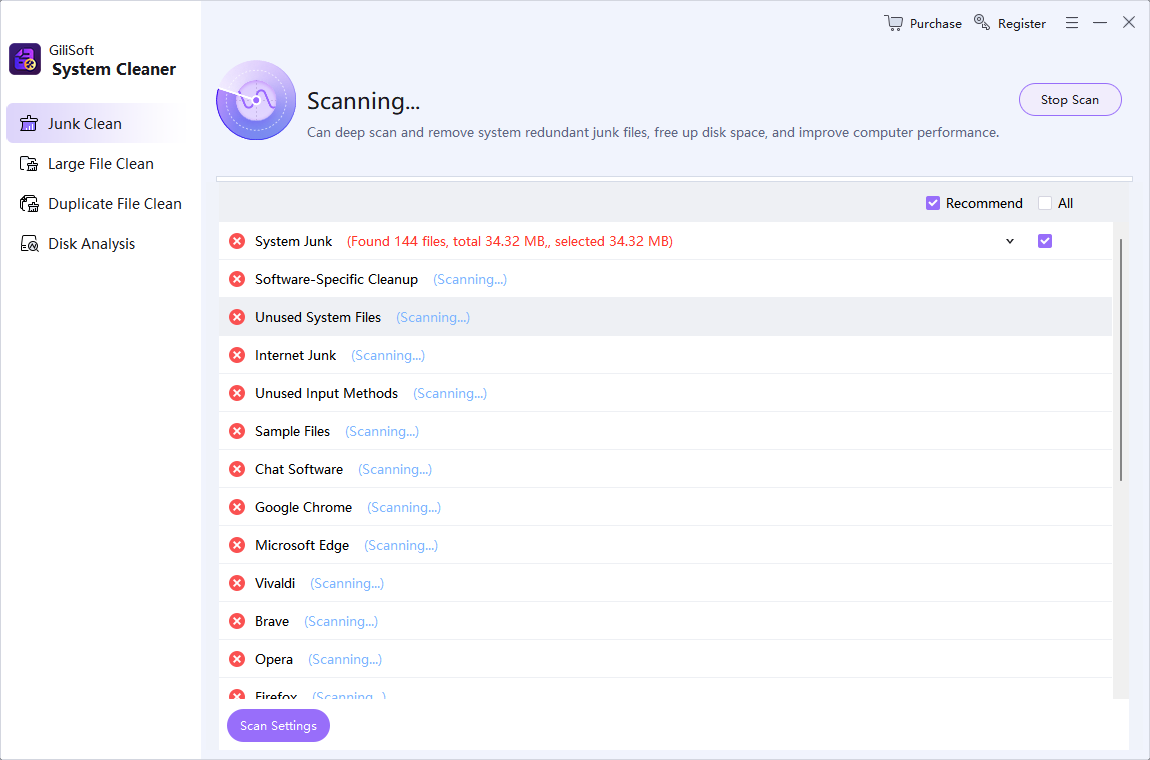
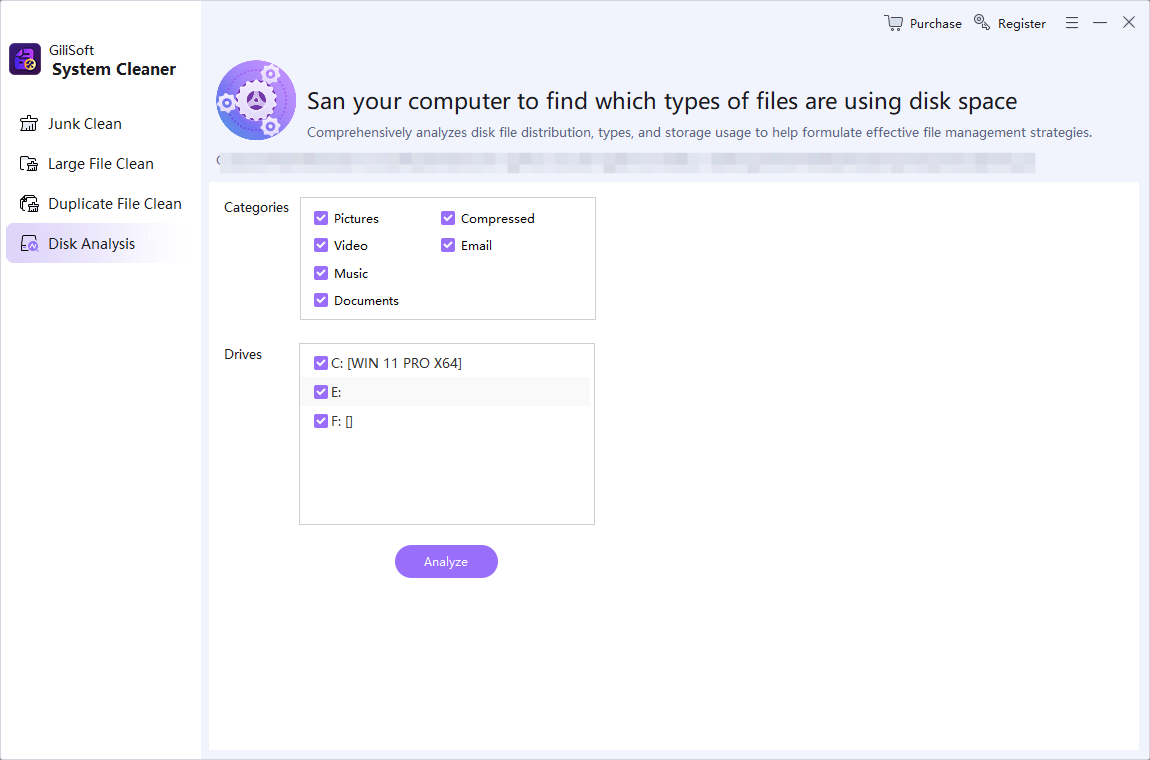
Check free space and identify whether temporary files, large files, duplicates, or applications are responsible.
- Scan one category at a time.
Avoid mixing junk cleanup with broad deletion of downloads or project files.
- Review paths and sizes.
Keep files tied to active software, projects, backups, and sync folders.
- Verify the result.
Restart if necessary and confirm applications and important files still work.
Use Total Repair when cleanup is not the whole problem
| Problem | Relevant Total Repair area | Important boundary |
|---|---|---|
| Junk, large, or duplicate files | System Clean | Review each result before removal |
| Program will not open | Application Error, DLL, C++, or .NET repair | Match the repair to the observed error |
| Slow startup | Startup Manager | Disable only recognized entries |
| Unknown storage use | Disk Analysis | Analysis does not mean every large file is disposable |
| Damaged or deleted file | File Repair or Data Recovery | Work from a copy and save output separately |
What maintenance software cannot fix
Cleanup cannot repair failing hardware, replace a valid backup, correct every third-party application defect, or make an unsupported PC compatible with new software. Use drive and memory diagnostics for suspected hardware failure, and contact the relevant software or device vendor when the evidence points to a specific product.
Frequently asked questions
Can Windows clean temporary files for free?
Yes. Storage settings and built-in cleanup tools can remove selected temporary files. Review categories before deletion.
Is disk cleanup the same as Windows repair?
No. Cleanup removes unnecessary data; repair addresses damaged components, missing dependencies, or known errors.
Should I delete every large or duplicate file?
No. Size or duplication alone does not prove a file is unnecessary. Check its path, owner, project, and backup status.
Does Total Repair read Windows event logs?
No. Use Event Viewer for Windows logs, then use the error clues to choose an appropriate Total Repair module.
Is Total Repair free?
The download is a trial. Windows includes several free maintenance tools, while the complete Total Repair feature set requires a license after evaluation.