MP3
Listening and sharing
A practical choice for phones, portable players, websites, and compact music or spoken-audio libraries. Choose the quality around the recording and the file size you need.

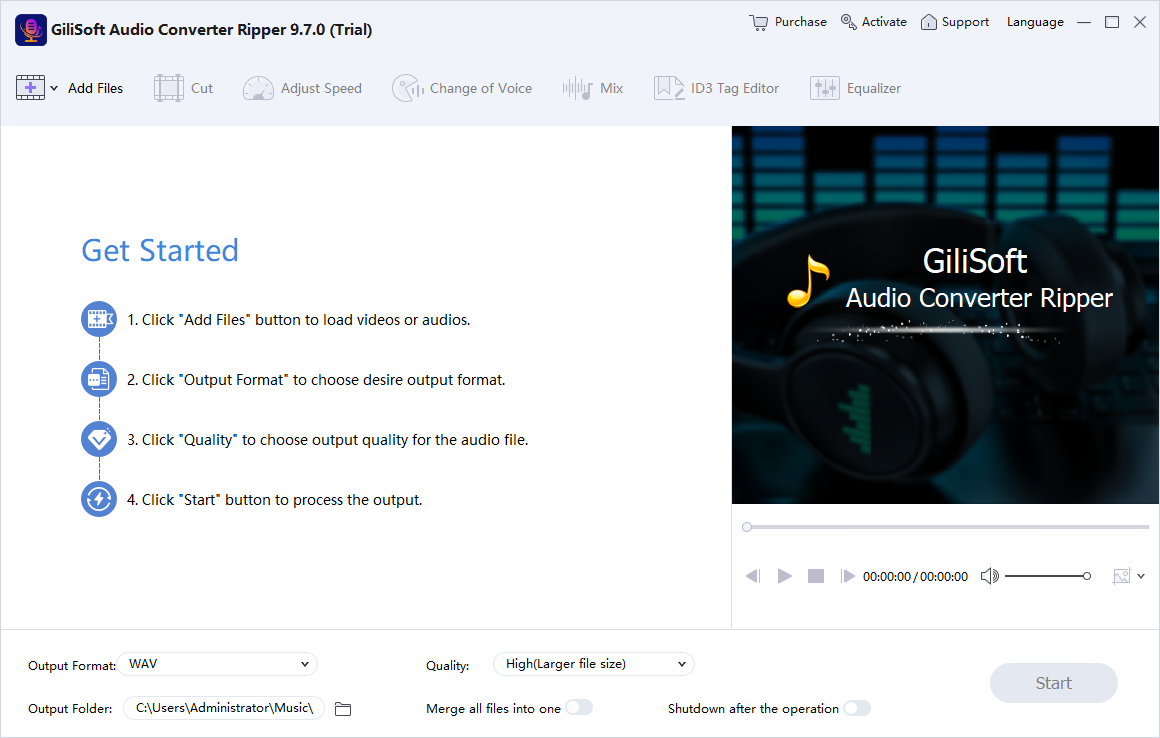
Bring your audio files, CD tracks, and video soundtracks into the format you need. Batch convert music and recordings, rip Audio CDs, and prepare audio for players, phones, editing, and sharing on Windows.
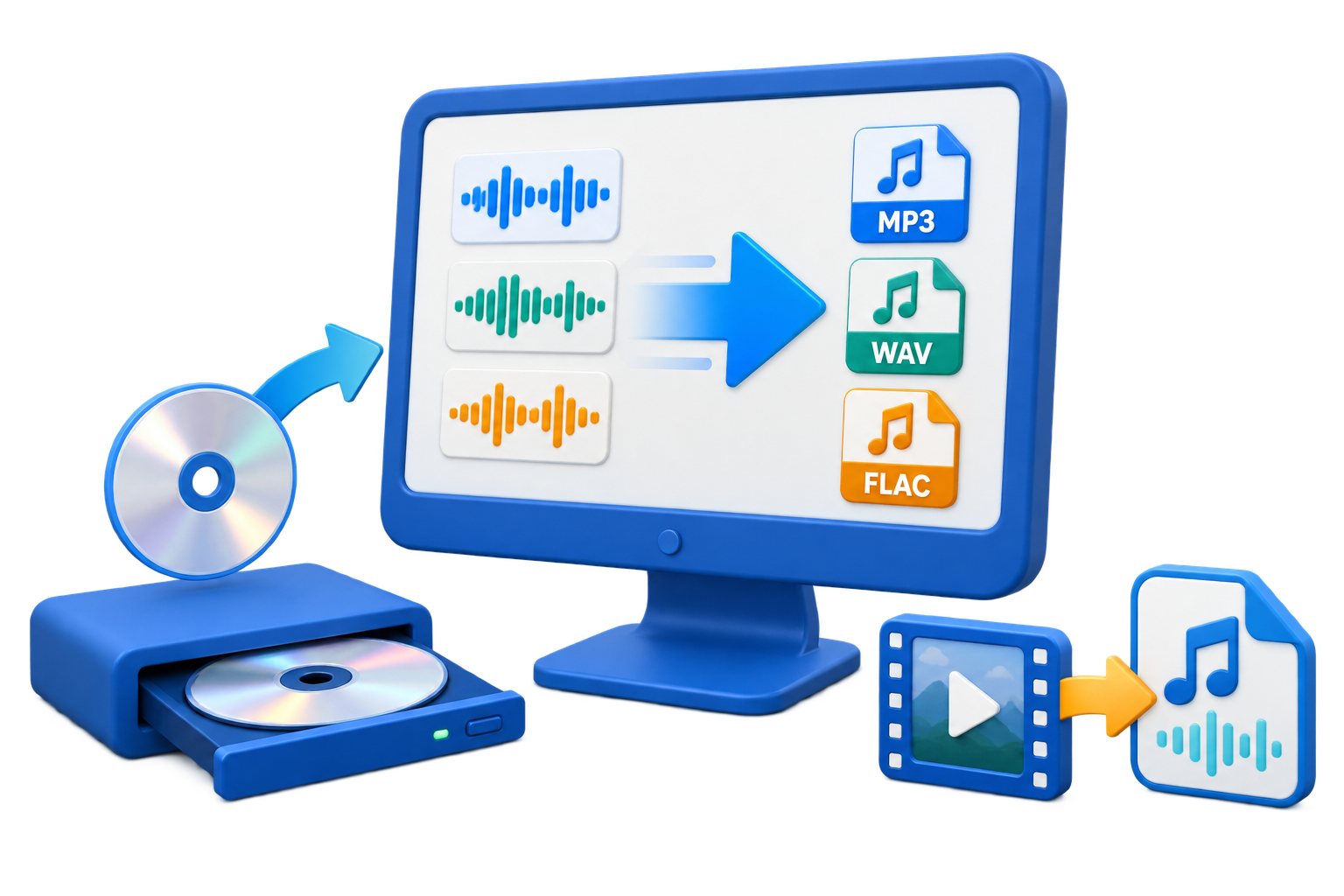
GiliSoft Audio Converter Ripper is a Windows audio converter and CD ripper for music libraries, spoken recordings, and video soundtracks. Convert MP3, WAV, FLAC, AAC, M4A, OGG, WMA, APE, and other audio formats, copy Audio CD tracks into digital files, or save only the sound from a video.
Load multiple files for a batch, choose the output format and quality, and send the results to one destination folder. Keep each file separate for a music library or turn on merging when several clips should become one continuous audio file.
Prepare the sound before conversion with clip start and end points, volume and speed adjustments, fades, mixing, equalizer, and voice effects. Edit title, artist, album, year, genre, and cover artwork in ID3 Tag Editor so the finished files are ready for playback, editing, archiving, or sharing.
Move between MP3, WAV, FLAC, AAC, M4A, OGG, WMA, APE, AMR, MP2, and other formats. Prepare a compatible copy for a phone or player, a compact file for sharing, or a lossless output for an audio archive.
Add multiple audio or video files and convert them with your chosen output format and quality. Keep separate files for a library or enable merging for one continuous result, without repeating the setup for every source.
Save tracks from Audio CDs as MP3, WAV, FLAC, AAC, or another available output format. Choose the tracks you need and review available CDDB album information to organize a music or spoken-word disc collection.
Save the audio from MP4, MKV, AVI, MPEG, WMV, FLV, and other video sources. Turn a lesson, interview, presentation, or music video into an audio-only file for listening, editing, or reuse.
Set Start and End to keep a clip instead of the complete recording. Adjust volume and playback speed, add fade-in and fade-out durations, or reverse the audio before creating a sample, reference clip, or ringtone.
Use Merge all files into one for clips that should play in sequence. Use Mix to load music over the source, adjust its timing and volume, and add fades or repeat music when a project calls for layered sound.
Use Output Format and Quality to balance file size and sound quality. Adjust the ten-band Equalizer or apply Change of Voice presets and pitch controls when the converted audio needs a different tone or style.
Keep a converted library organized with title, artist, album, year, genre, and cover artwork. Review the metadata before conversion and use an output format that supports the information your player or library needs.

We use Audio Converter Ripper to standardize WAV, FLAC, and MP3 files before uploading training audio to our LMS.
CD ripping and CDDB support helped us archive older audio discs without manually typing every track name.
Extracting audio from MP4 and MKV files saves time when we only need narration tracks from finished videos.
See the conversion setup, trimming, mixing, equalizer, voice effects, and tag editor in the original product screenshots.
Use a compact format for everyday listening, uncompressed audio for editing, or lossless compression for a high-quality source collection.
Listening and sharing
A practical choice for phones, portable players, websites, and compact music or spoken-audio libraries. Choose the quality around the recording and the file size you need.
Uncompressed editing handoffs
Useful when an editor or production workflow needs uncompressed audio. Expect larger files than a compressed listening copy.
Lossless audio archives
Keep a lossless source in a compressed lossless format for storage and playback in a FLAC-capable player, without choosing a lossy listening format.
Compact audio for modern devices
Prepare efficient audio files for a phone, player, or application that accepts the chosen format. Match the output to the destination rather than only changing the file extension.
Existing and specialist libraries
Convert a mixed-format collection into the format your player or editor needs, or prepare a more widely compatible MP3 copy for sharing.
Use one conversion workflow for an individual file, a batch, a video soundtrack, or selected Audio CD tracks.
Use Add Files for audio or video sources. For an Audio CD, insert the disc and select the tracks through the CD-ripping workflow.
Set Output Format, Quality, and Output Folder. Leave merging off for separate files, or enable it when the clips should become one sequence.
Use Cut for Start and End, then adjust fades, volume, or speed. Open Mix, Equalizer, Change of Voice, or ID3 Tag Editor when the job needs them.
Start the conversion, then open the saved audio. Check the clip boundaries, file order, playback, and metadata before using the finished collection.
Bring Audio CD tracks and mixed-format music into one organized digital library. Choose a compact listening copy or a lossless archive, and review tags and album artwork.
Extract a lecture's audio, cut a short lesson segment, and standardize files for a learning platform or a student's player without keeping the original video picture.
Prepare interview audio, reference clips, presentation soundtracks, and production handoffs. Convert a complete batch to the output format required by the next application.
Prepare files for a phone, portable player, or personal audio collection. Trim the part you need, merge related clips, and balance output quality against storage space.
GiliSoft Audio Converter Ripper converts common formats including MP3, WAV, FLAC, AAC, M4A, OGG, WMA, APE, AMR, and MP2. Choose the destination format in Output Format and use Quality to balance the result's size and sound quality.
Yes. Add the source files, choose MP3 as the output format, select the quality and output folder, and start the conversion. Leave Merge all files into one off when you want a separate converted file for each source.
Insert the Audio CD into a readable CD or DVD drive, select the tracks in the CD-ripping workflow, choose an available audio output format and destination, and start ripping. Review album information when CDDB data is available, then check the saved track names and order.
Yes. Add the video file as the source and select MP3 or another audio-only output format. Convert the complete source or use Cut to keep a selected segment. The result is an audio file without the video picture.
Merging places files one after another in a single output; use Merge all files into one in the main window and review the file order. Mixing layers sounds together; the Mix tab lets you load music and adjust timing, volume, fades, and repeat behavior.
Choose MP3 for compact files and broad playback support, WAV for uncompressed editing handoffs, or FLAC for lossless compression of a lossless source. Converting an MP3 to WAV or FLAC does not restore sound detail already lost in the MP3.
Yes. Set the clip's Start and End, adjust volume and speed, add fades, use Equalizer or Change of Voice, and edit metadata in ID3 Tag Editor. The tag dialog includes title, artist, album, year, genre, and album artwork; choose an output format that supports the metadata you need.
GiliSoft Audio Converter Ripper is paid Windows software with a trial download. The purchase page offers a one-year license for 1 PC at $24.95 and a lifetime license for 1 PC at $34.95, with multi-PC and team options. The Buy Now buttons on this page show the lifetime 1-PC price.
Batch convert audio, rip Audio CDs, extract video soundtracks, and prepare the clips and tags you need with GiliSoft Audio Converter Ripper.
Compare one-year, lifetime, multi-PC, and team licenses 


Enter your email address to get our latest newsletter