


The Private Disk workflow in four steps
A .gpd file is the encrypted container. When you open it with the correct password, Private Disk makes the protected storage available for normal file work. Closing the locker removes that open storage view while keeping the container on disk.
Create
Set the container location, maximum size, and password.
Open
Select the locker and provide its password.
Use
Copy, edit, and organize files inside the private disk.
Close
Close the locker after finishing the private work.
.gpd file holds the protected data. Record its location and include the closed container in your backup plan.1. Create an encrypted .gpd locker
Open Encrypt Files to create a new locker or reconnect an existing one. The same workspace shows each container and whether it is currently open or closed.
- Open Encrypt Files, then choose Create Locker.
- Enter a clear locker name and select where the new
.gpdcontainer will be stored. - Choose a maximum size that leaves enough free space on the host drive.
- Create and confirm a strong password, then complete the creation wizard.
2. Open, use, and close the private disk
- Select the required locker and click Open Locker.
- Enter its password, then open the private storage location presented by Windows.
- Copy, edit, organize, and save confidential files inside the opened private disk.
- Close documents, media players, editors, and File Explorer windows using the private disk.
- Return to Private Disk, click Close Locker, and verify that its status is Closed.
Move, back up, and maintain a locker safely
Perform container-level operations only after the locker is closed. This prevents open files from interrupting a copy or move.
Move the private disk
Close the locker, move the entire .gpd file, then use Open Locker to select it from the new location.
Back up the container
Copy the closed .gpd file to separate reliable storage. Keep more than one copy for data that cannot be recreated.
Change the password
Verify the current password, set a strong replacement, and immediately update the secure password record used for recovery.
Use multiple lockers
Separate personal, business, archive, or project files when independent passwords and backup schedules make management clearer.
More tools included with Private Disk
These supporting workspaces are useful for portable delivery and lower-visibility storage. They are separate from the core .gpd locker workflow above.
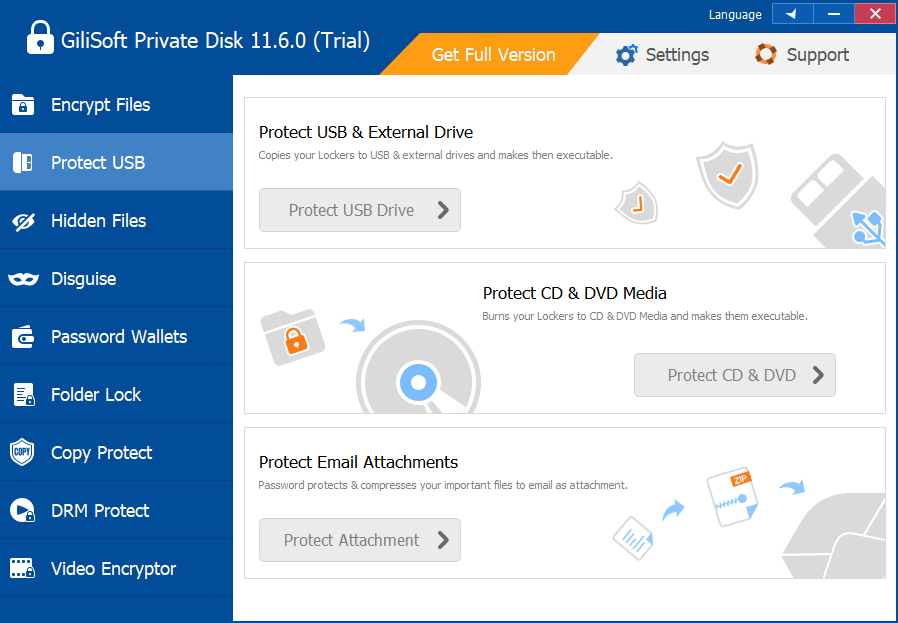
Portable and offline protection
Prepare protected content for USB or external drives, CD/DVD media, and password-protected email attachments.
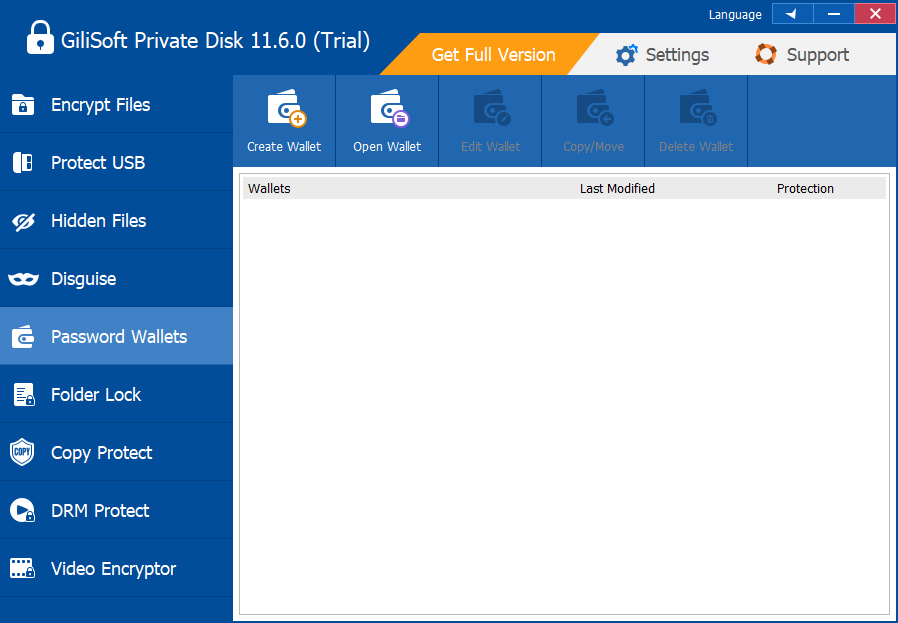
Password Wallets
Create protected records for account notes, software keys, and other private reference information.
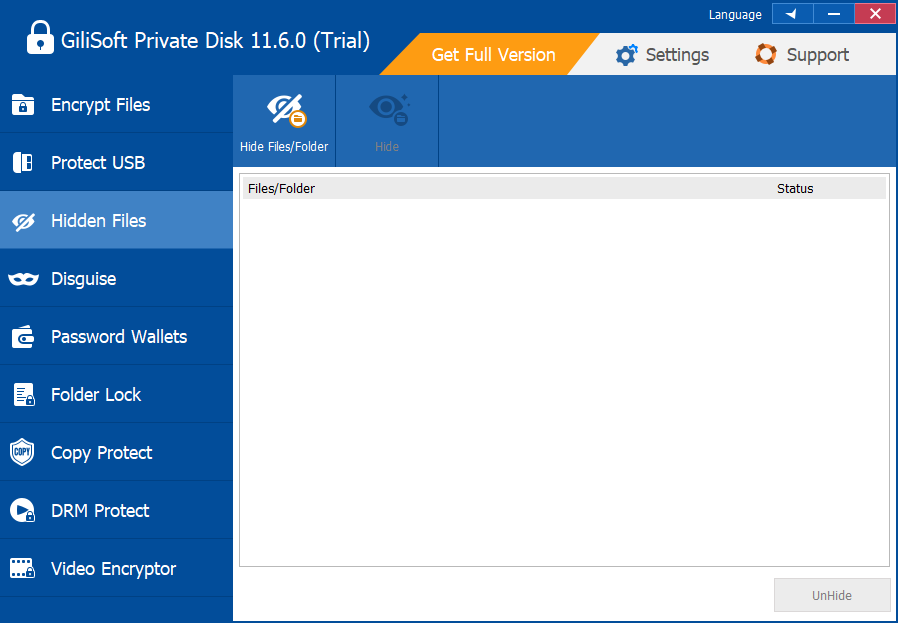
Hide files and folders
Remove selected items from ordinary Windows browsing, then restore visibility with the UnHide command.
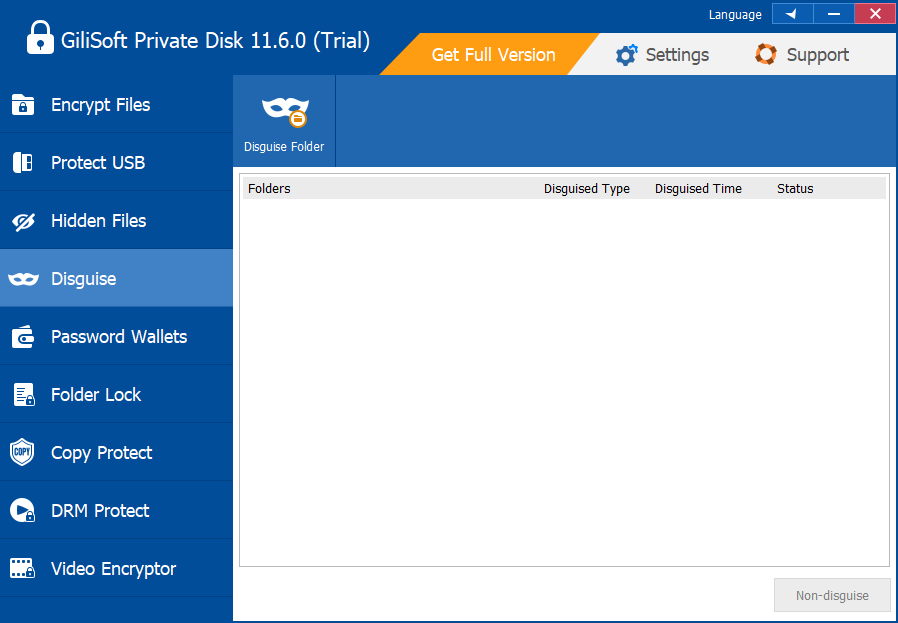
Disguise a folder
Change how a selected folder appears when a less obvious presentation is useful, then restore its normal appearance later.
Private Disk safety checklist
Back up the closed container
Encryption protects confidentiality; it does not replace a second copy against drive failure, loss, or accidental deletion.
Close before moving or unplugging
Close every file and the locker itself before moving the container or disconnecting removable storage.
Keep credentials recoverable
Use a unique password and store it securely. Do not rely only on memory for long-term archives.
Test the backup
Periodically confirm that the backup container can be located and that the current password is available.
Troubleshooting Private Disk
How do I open a .gpd file?
Open Private Disk, choose Encrypt Files, click Open Locker, select the container, and enter its password.
Why is a locker listed as not found?
The .gpd file may have moved, been renamed, or be stored on a disconnected drive. Locate the current container path and reconnect it.
Why will the locker not close?
Close every document, application, media file, and Explorer window using the private disk, then try Close Locker again.
Can I move a locker to another drive?
Yes. Close it first, move the complete .gpd file, then reconnect it through Open Locker.
What should I do before removing a USB drive?
Close the locker, wait for writes to finish, and use Windows safe removal before disconnecting the device.
What if I forget the locker password?
Use the secure password record prepared when the locker was created. Protected content may not be accessible without the correct credentials.


