
Video for Everyday Playback
Convert a movie, episode, family recording, or lesson to MP4, AVI, MOV, MKV, or another video format. Keep the titles you want and select the language and subtitles for your audience.

Keep your DVD movies, family recordings, and lessons ready to watch on computers, phones, and tablets. Convert to video or audio, choose the language and subtitles, and prepare the clips before export.
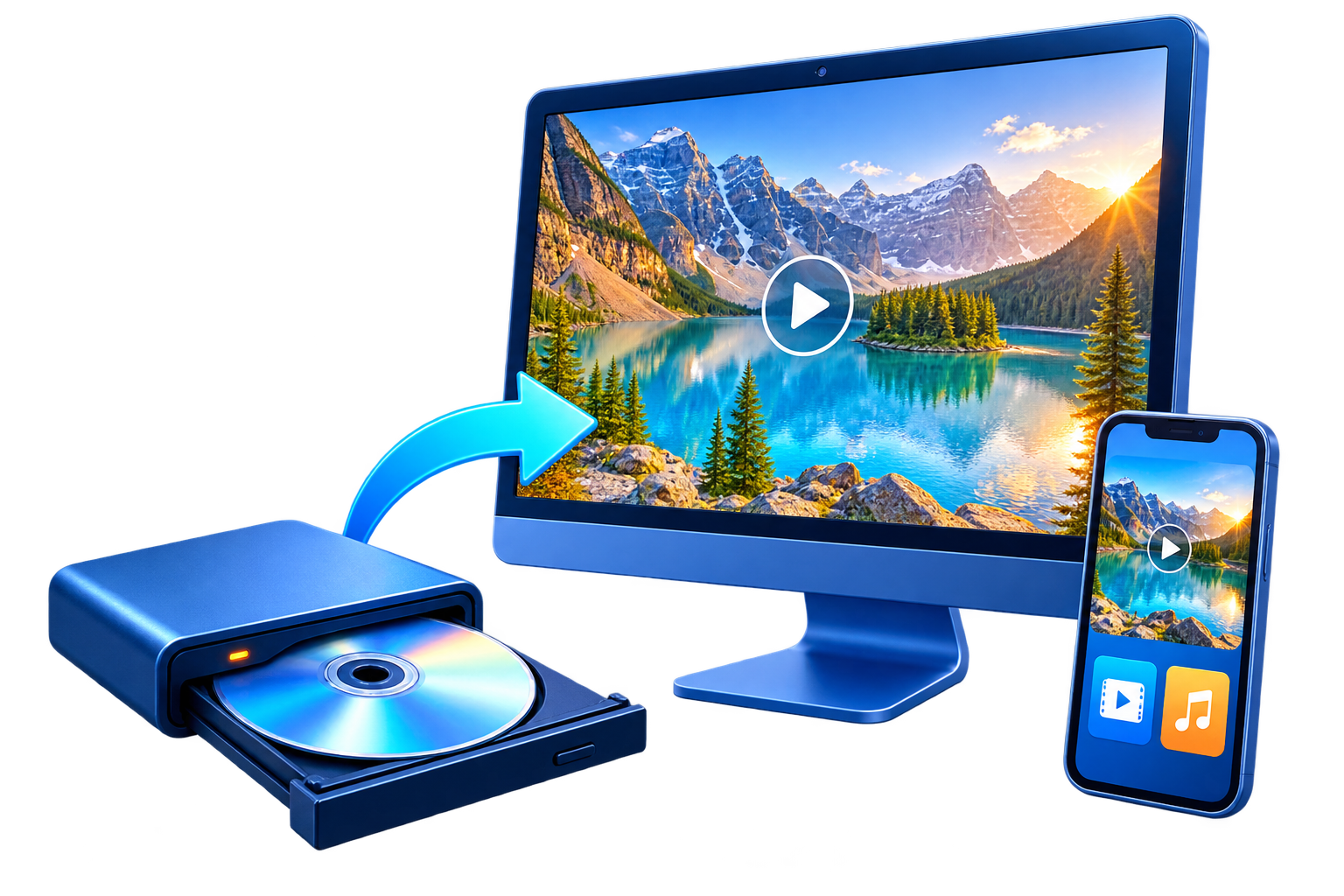
GiliSoft Home DVD Converter brings DVD movies, family recordings, event footage, and lessons onto the devices you use today. Load a DVD disc, ISO image, or VIDEO_TS folder on Windows and convert it to MP4, AVI, MOV, MKV, WMV, or other video formats. Extract soundtracks, interviews, and lectures to MP3, WAV, AAC, FLAC, and other audio formats when you only need the sound.
Keep the content you want, in the language you need. Preview the titles, compare their running times, and select the movie, episode, or recording to convert. Choose its audio track and subtitle option, then use a device profile or customize the output for computer, phone, tablet, or media-player playback.
Prepare the video in the same workflow: set start and end times, crop unwanted edges, adjust brightness, contrast, and saturation, add text or image watermarks, and load an external subtitle file. Output Settings gives you control over video size, aspect ratio, bitrate, frame rate, audio quality, channels, sample rate, and volume.
Save normal video and audio files for everyday playback, or create an ISO image or DVD folder when you want to retain the DVD structure. The Home DVD Converter user guide walks through loading a source, choosing tracks, preparing clips, and creating the finished output.


Turn DVD content into MP4, AVI, MPEG, WMV, MOV, MKV, FLV, 3GP, and other video formats. Use an MP4 profile with H.264 video for a broadly supported playback format, or choose the format required by your player or editing workflow.
Start with an available device profile for Apple devices, Android phones and tablets, game consoles, or media players. Adjust the video size and audio settings to suit the screen, storage space, and playback software.
Save a soundtrack, lecture, interview, or selected passage without the video picture. Choose MP3, WAV, WMA, OGG, AAC, MP2, or FLAC, then set audio quality, channels, sample rate, bitrate, and volume.
Load an optical disc through Open DVD Disc, an image through Open DVD ISO, or an existing DVD folder through Open DVD Folder. Use the same title-selection and conversion workflow for all three source types.
Create an ISO image or DVD folder from a loaded DVD disc when you want to retain its DVD structure. Choose a normal video profile instead when you need an MP4 or other file that opens directly in a media player.
Preview titles and compare their durations before selecting the main movie, individual episodes, or bonus material. Use the Channel and Subtitle selectors to choose the audio language and available subtitle track.
Set the Start and End times in Cut to keep the passage you need. Use Merge video files together when selected clips should become one output, and preview the sequence before starting conversion.
Adjust video size, aspect ratio, bitrate, frame rate, and codec in Output Settings. Set audio quality and channels, save preferred settings, and choose the output folder before starting the conversion queue.
Set the top, bottom, left, and right crop boundaries and use Keep Aspect Ratio when needed. Adjust brightness, contrast, and saturation while previewing the picture before export.
Load an external subtitle file and adjust its font, color, and vertical position. Add a text or picture watermark with position and font controls to label lessons, event videos, and presentation material.

We convert training DVDs to MP4 for internal playback, and output quality remains stable across devices.
Batch conversion from ISO and DVD folders saved us a lot of time in our archive migration project.
Device presets helped our team deliver consistent files for iPad, Android, and desktop playback without extra tuning.
Audio extraction from DVD sources is straightforward and reliable for podcast and transcript preparation.
The editing tools are practical for trimming and cleanup before exporting final training and support videos.
Preview the DVD conversion path: load a disc, ISO, or DVD folder, choose output settings, make light edits, and complete the export.
Load DVD content, review titles, choose output format, and prepare conversion tasks from the main screen.
Convert a movie, episode, family recording, or lesson to MP4, AVI, MOV, MKV, or another video format. Keep the titles you want and select the language and subtitles for your audience.
Extract lectures, interviews, music, and spoken passages as MP3, WAV, AAC, FLAC, or another audio format. Trim the selection and choose the audio settings before export.
Save a loaded disc as an ISO image or DVD folder when retaining the DVD structure matters. Use a video output instead when you want a file that plays without DVD navigation.
Open a DVD disc, ISO image, or DVD folder. Preview the titles and select the movie, episodes, or recordings you want to keep.
Load a disc, ISO, or DVD folderSelect the audio language and subtitles. Choose a video or audio profile, adjust the output settings, and trim or prepare the clips.
Choose the format and qualityChoose the output folder and click Start. When conversion completes, use Open Output and check the picture, sound, and subtitles.
Convert and check the finished fileKeep weddings, trips, school performances, and family recordings available as video files on a computer or portable device instead of relying on the original disc for every viewing.
Turn DVD lessons, demonstrations, and recorded talks into selected video clips or listening material. Choose the language, prepare subtitles, and label the exported content.
Select the main feature, individual episodes, or bonus material rather than converting every title. Prepare a file format that fits the player and storage space you plan to use.
Extract passages from event DVDs, crop the picture, adjust color, and add text or a logo before export. Keep video files for editing and playback, or retain the DVD structure as an archive.
Load the disc in GiliSoft Home DVD Converter, select the required title, audio track, and subtitles, then choose an MP4 output profile. Review Output Settings and the destination folder, click Start, and use Open Output to play the completed file.
Yes. Load DVD includes Open DVD ISO and Open DVD Folder. Select the image or the folder containing the complete DVD structure, choose the required title, and export to MP4, AVI, MOV, MKV, or another available video profile. These file-based sources do not require an optical drive.
Yes. Select the title and audio track you want, then choose an audio output such as MP3, WAV, AAC, WMA, OGG, MP2, or FLAC. Use Cut if you only need a passage, and set the audio quality, channels, sample rate, and bitrate before conversion.
Compare title durations and preview likely candidates. A movie DVD often has one long main title; an episodic DVD may have several titles of similar length. Select the required titles, choose the intended language in Channel, and preview the sound before converting the full selection.
Choose an available DVD subtitle track in the main window, or open Subtitle to load an external subtitle file. The subtitle editor provides font, color, and vertical-position controls. Preview the timing and readability, then check the finished video to confirm the intended subtitles appear.
Choose MP4 or another video format for direct playback on a computer, phone, tablet, or media player. MP4 is a video file, not an interactive DVD menu. Choose ISO or DVD folder output from a loaded disc when you want to retain the DVD structure for storage and DVD-based playback tools.
Start with an output profile suited to the intended player. In Output Settings, review video size, bitrate, frame rate, and audio bitrate. Avoid enlarging standard-definition DVD footage just to increase the pixel count; that does not restore missing detail. Trim unnecessary material and compare a short converted sample before processing a long title.
Confirm that the optical drive can read the disc and close other programs using it. For ISO and folder sources, check that the image or VIDEO_TS structure is complete. Try the matching Load DVD option again. If it still fails, send support the source type, error message, and Windows version.

Editors highlighted practical output coverage for MP4, AVI, WMV, MOV, MKV, H.264, and audio extraction tasks, with clear presets for device playback and archive delivery.
Review notes praised dependable conversion behavior on long media assets, ISO files, and DVD folders where users need predictable output rather than a complicated authoring tool.

Independent notes described the built-in cut, crop, effects, watermark, subtitle, preview, and output setting panels as useful finishing steps before converting DVD content.
Convert DVD discs, ISO images, and DVD folders with GiliSoft Home DVD Converter. Choose your titles, language, and subtitles, then create the video or audio files you need.


Enter your email address to get our latest newsletter